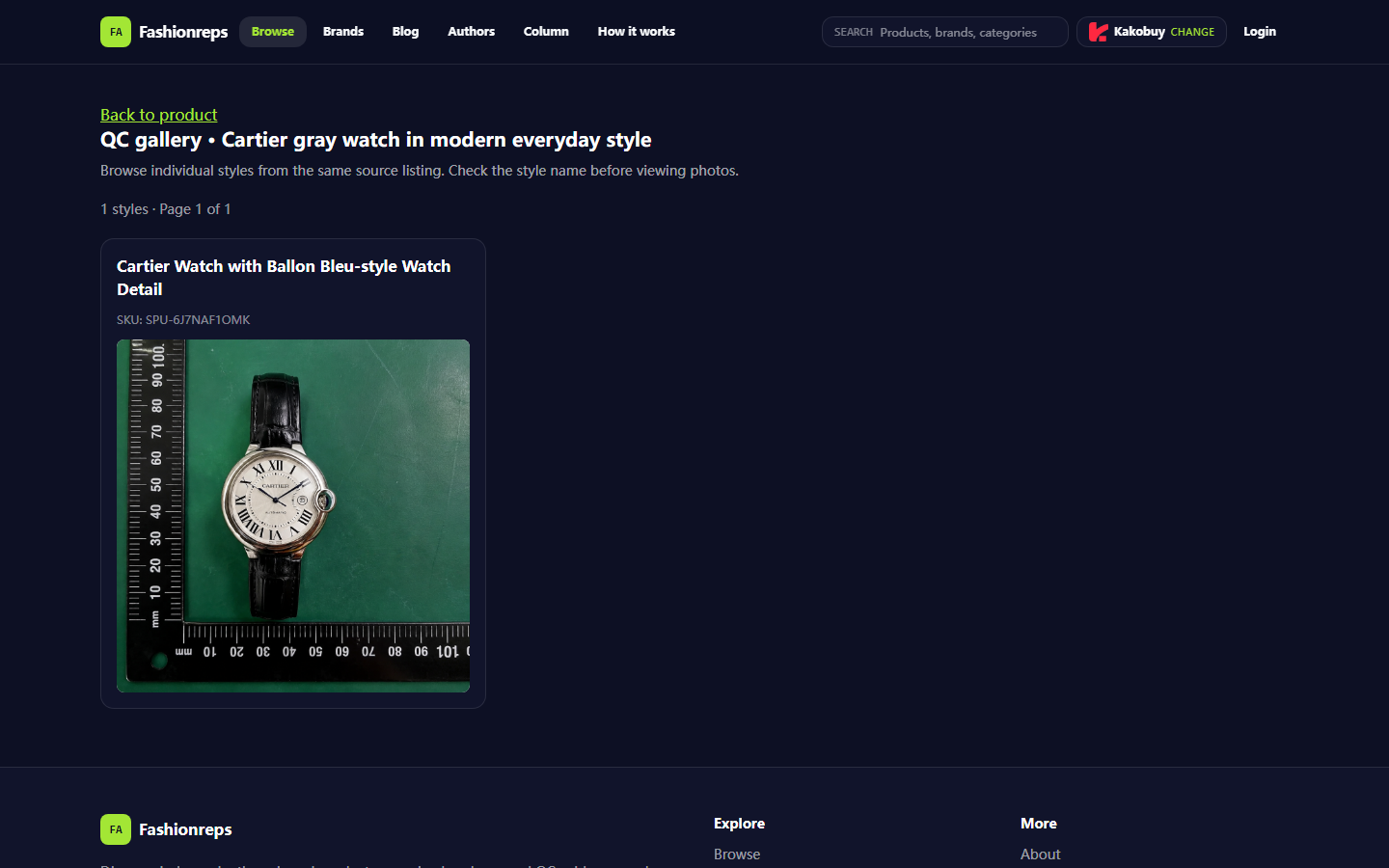
 Caption: Example of the QC photo page for a [Fashionreps](https://fashion-reps.net/) product. The page shows the product name, style information, and QC gallery entry, but whether specific images are visible still depends on the current page status. If you're browsing Cartier watch products on Fashionreps and don't see View QC Photos, or clicking it doesn't bring up i

Caption: Example of the QC photo page for a Fashionreps product. The page shows the product name, style information, and QC gallery entry, but whether specific images are visible still depends on the current page status.
If you're browsing Cartier watch products on Fashionreps and don't see View QC Photos, or clicking it doesn't bring up images matching the current product, don't refresh repeatedly or place duplicate orders right away. First, confirm whether the entry exists, whether the product style matches, and whether the gallery is temporarily empty or the page didn't load correctly.
This article addresses one specific issue: the product page or QC page fails to display QC photos for the current product. After reading, you should be able to document the page, identify the type of anomaly, and submit necessary information through the official support channels visible on the target site. This article does not cover payment failures, logistics tracking, warehouse inspection completed but image quality is poor, or external shopping agent account login issues.
Defining Cartier Watch QC Photo Entry Anomalies and Troubleshooting Scope
Fashionreps product pages may include product name, SKU, style selection, and QC photo entry. The example page shows "Cartier gray watch in modern everyday style," a specific style name, and a QC gallery page. This page information only proves that the page provides the corresponding entry or gallery page, not that every product currently has viewable images.
Classify the anomaly into one of the following situations:
- The product page has no View QC Photos or similar QC photo entry at all.
- The entry exists, but clicking it leads to a blank page, continuous loading, or an error message.
- The QC page opens, but the gallery is empty.
- The QC page has images, but they correspond to the wrong style, color, model, or another product.
- Both the product details page and QC page are normal, but you cannot confirm whether the images belong to your current order.
If the page shows another product or style, treat it as a mismatched correspondence, not as "temporarily no images." 🧭
Save Product Details Page, Order Style, and Current Page Status First
Before troubleshooting, save minimal evidence to avoid losing the original state after refreshing. Record the following:
- Product title and style name shown on the product page.
- SKU or visible product identification information on the page.
- Selected color, model, size, or other variant.
- Whether the current page displays View QC Photos, QC gallery, or a similar entry.
- The page URL, title, and visible message after clicking the entry.
- Date and approximate time of the issue.
- Screenshots, especially of product name, variant info, button state, and error messages.
Keep screenshots only to the information needed for troubleshooting. Do not publicly share order number, shipping address, phone number, payment card information, full shipping label, or account credentials. If a screenshot contains personal information, cover it before submitting. 🔒
If you haven't created an order yet, save the product page and selected variant state; if you have placed an order, also save the style information actually selected in the order. The default style on the product page may not be the same as the style in your order.
Check if View QC Photos Button Exists and Corresponds to Current Product
Return to the product details page and check the current product information from top to bottom. Do not directly open an old QC page from browser history. Confirm in order:
- Is the page title still the target Cartier watch product?
- Does the SKU shown in the product card or details area match your earlier record?
- Is the currently selected color, model, or style correct?
- Does View QC Photos appear in the current product area, not in related recommendations or other style sections?
- After clicking, does the opened QC page title or product identification still match the current product?
If the page contains multiple styles, select the target style first, then open the QC photo entry. The example page indicates checking the style name, suggesting that products from the same source may have multiple styles; therefore, seeing the words "Cartier watch" alone is not enough to prove that the images belong to the specific style you selected.
If the entry jumps to a different style, stop viewing and reselect the correct style from the product page. Do not assume images belong to the current product based on similar appearance, similar titles, or the same seller. 🔍
Distinguish Missing Button, Page Load Failure, and Temporarily Empty Gallery
A missing button usually means the current product page does not provide a visible QC entry, or the page did not load completely. First check if the page is still loading, then reopen the product details page and confirm other product information displays normally. If title, SKU, images, and variant areas are all missing, do not repeatedly operate only on the QC button; record the issue as incomplete page loading.
When the entry exists but the page fails to load, record the page status before and after clicking, and any error text. Reopen the page once to rule out a transient loading issue, but repeated refreshing or rapid clicking can make it hard to determine when the problem occurred and may open multiple confusing pages.
When the QC page opens but the gallery is empty, first confirm whether the empty gallery clearly shows the current product name or SKU. If the page only has a generic QC gallery title without any product identification, do not interpret the blank page as "this product has no QC photos." In this case, it's safer to save the page state and ask the official support channel.
If only the image area is empty while the product name, style, and other page content display normally, record it as an empty gallery; if the entire page content is incomplete, record it as a page loading issue. The two situations require different descriptions when submitting to support. 📝
Verify Color, Model, Variant, and Order Information Consistency
QC image correspondence should be checked from at least four aspects:
- Product name: Does the page still point to the target product?
- Style or model: Does it match the specific style selected at purchase?
- Color or appearance variant: Does it match the product page and order record?
- SKU or other identification: Consistent before and after?
Do not assume products are identical based on dial color, strap style, or silhouette in images. Similar styles may share partial titles or come from the same source. If the QC page does not provide enough information to confirm correspondence, treat "uncertain" itself as something needing support confirmation.
If you have placed an order, compare the style information in the order side-by-side with the product page record. If they differ, first confirm whether you changed the variant during ordering, rather than asking support to handle a QC page that is not for the current order.
Stop Repeated Refreshing and Record Time, Page Evidence, and Error Messages
After performing one purposeful reopen or page check, if the problem persists, stop refreshing continuously. Further refreshing usually cannot prove the gallery has updated or that the page fault has recovered.
Conditions for stopping include:
- The entry cannot be opened repeatedly and the page state does not change.
- The QC page shows a product or style different from the current product.
- The page remains blank or repeats the same error message.
- You cannot confirm whether the current page belongs to your order.
- The page asks you to submit or display sensitive information such as order, payment, or address.
When recording, write down "what you did" and "what you saw," for example: opened the product page, selected a style, clicked View QC Photos, page displayed empty gallery, no images appeared, or an error message appeared. Do not just write "QC photos are gone," because that does not help support distinguish missing button, load failure, and correspondence error. ⏱️
Submit Necessary Information via Visible Official Support Channels on the Target Site
Use the official support or contact entry visible on Fashionreps pages to report the issue. Do not obtain so-called customer service contact from search results, unsolicited private messages, or unofficial pages, and do not send account passwords, full payment card information, or complete shipping addresses to anyone.
Keep the submission concise, including:
- Product title.
- SKU or visible product identification on the page.
- Selected color, model, or style.
- Whether you have placed an order and the corresponding style information in the order. Unless official support explicitly requests, do not send complete order details first.
- Whether View QC Photos exists.
- Specific symptoms after clicking: missing button, page load failure, empty gallery, or product correspondence error.
- Time of occurrence and saved screenshots.
If support staff need to verify the order further, submit only necessary fields through the target site's official pages and first confirm the page is on a secure official domain environment. Before sending screenshots externally, cover order number, address, phone number, payment information, and any other personal data irrelevant to QC image assessment.
Do not request lower declared value, splitting orders to avoid taxes, or evading inspection in support channels. QC image issues are separate from destination country taxes, import restrictions, and compliance declarations, and should be handled separately. ✅
How to Reconfirm QC Gallery and Product Correspondence After Access Restored
After the page is restored, don't just confirm images display; also re-verify correspondence:
- Re-enter from the product details page, not from an old tab.
- Confirm product title, SKU, and variant information.
- Open the QC photo entry again.
- Check whether the QC page shows the same product or style identification.
- Compare the restored page with previously saved order or product records.
- If you still cannot confirm correspondence, pause further processing and continue verifying through official support channels.
If the gallery is restored, it only means the current page can load images; it does not automatically prove the images belong to your order. For Cartier watches with similar colors, models, or styles, identification information is more important than visual similarity.
This troubleshooting approach is suitable for buyers who need to preserve evidence and avoid misjudgment. It may take a few extra minutes to record pages and check variants, but it reduces the risk of mistaking photos of a wrong style as QC evidence for your current order. If the page consistently fails to confirm product correspondence or support cannot provide a clear answer, do not continue placing orders, confirming receipt, or making quality judgments based on that gallery.